Lock a link to prevent unauthorized edits. Only the link owner and account admins can change a locked link. Everyone else will see Edit hidden or disabled with an explanatory tooltip.
Lock a link protects live QR codes and short links from accidental or unauthorized changes. When a link is locked, only the owner and account admins can edit it. Non-owners will see the Edit option hidden or disabled, along with a clear message that the link is locked. Locking does not affect scans, analytics, or redirects—it only restricts configuration changes.
What Locking a Link Does
Locking a link prevents edits by anyone who is not the link owner or an account admin. This helps safeguard live campaigns, printed QR codes, and short links from unexpected changes.
When a link is locked, we show a Locked badge and icon in red in the link details drawer. In the links list, locked links are highlighted so teams can quickly see which links are protected.
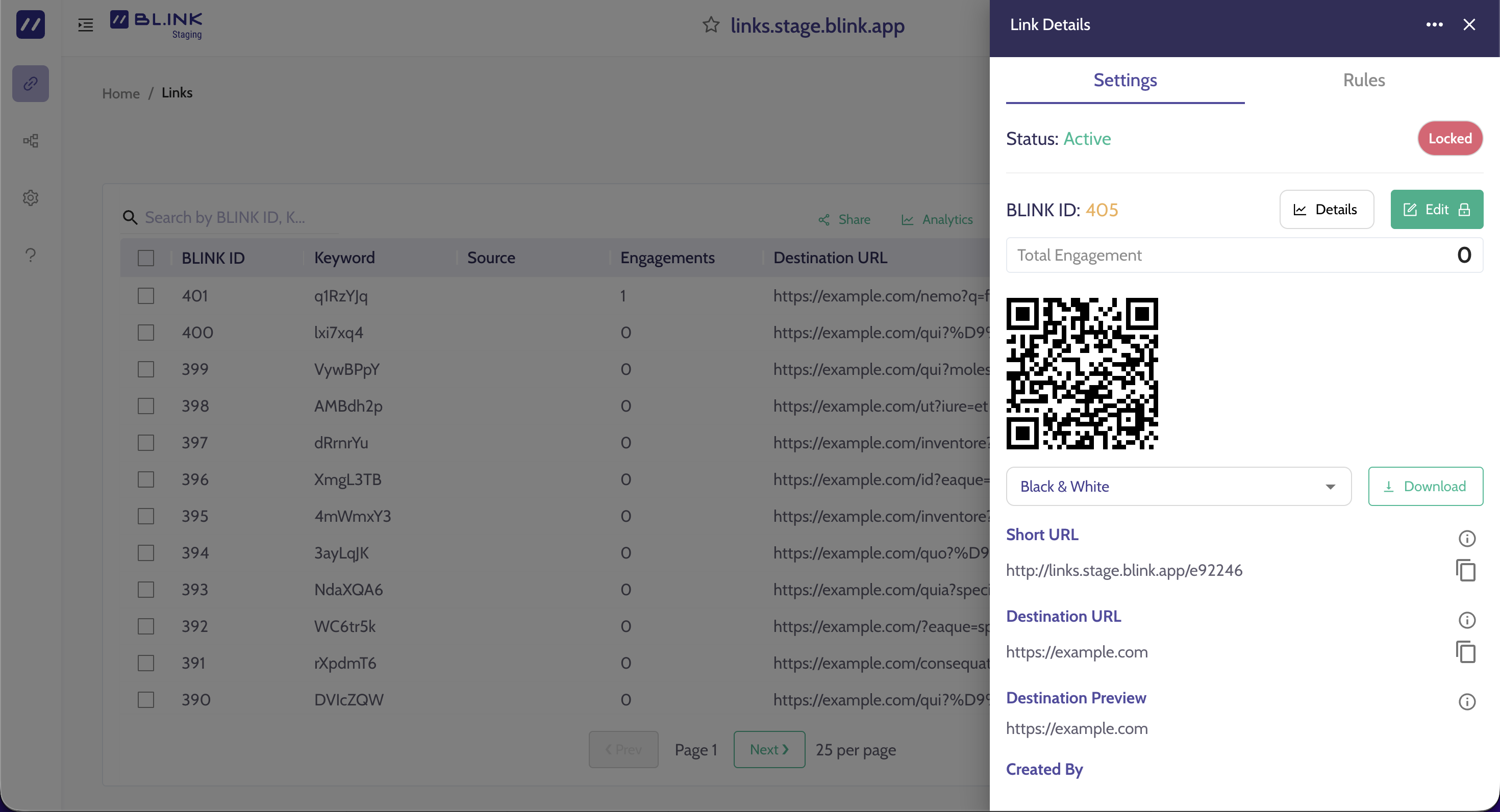
Who Can Edit a Locked Link
- Link Owner
- Can edit and unlock
- Account Admins
- Can edit and unlock
- All other users
- Cannot edit or unlock
NOTE:
Locking does not change how a link resolves, how QR codes scan, or how analytics are recorded. It only restricts the ability to modify settings.
Locking a Link During Link Creation
Start by logging in to the BL.INK account. Click Links on the left, then click Create link.
Configure your destination and settings in the Create link drawer. Toggle Lock link. The default is off.
Once you have entered your destination, optional attributes, and updated your link settings, click Save.
If you lock at creation, the link will be protected as soon as it’s saved.
Locking or Unlocking an Existing Link
Start by logging in to the BL.INK account. Click Links on the left, then click the link you want to manage.
In the Link details drawer, click Edit. Toggle Lock link on or off. Then click Save.
If the link is currently locked and you are authorized, you will see a confirmation before you can continue editing.
Editing a Locked Link (owner or admin only)
When an authorized user tries to edit a locked link, a confirmation modal appears.
Type CONFIRM exactly as shown, then click Continue to proceed with edits.